iMIS
Q4 2025 iMIS Product Update
Discover the newest updates to iMIS EMS like custom membership invoice descriptions, previewing a business object without a query, and more.
Discover the newest updates to iMIS EMS like negative gifts, Form Builder enhancements, and more.
Get ready for the latest iMIS® product update! We're excited to share new features and enhancements from the recent iMIS EMS release.
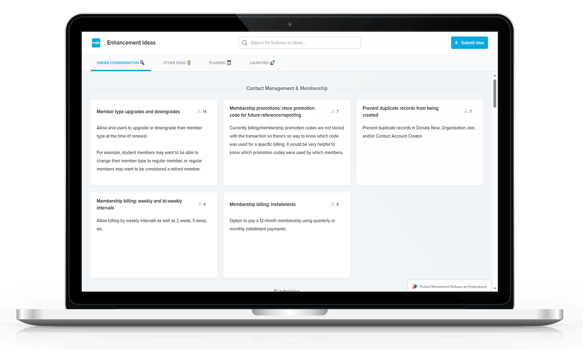
We love receiving your product feedback, whether it's suggestions for new features or your iMIS success stories. Don't hesitate to add an idea to the iMIS Enhancements Portal It's easy to search for ideas, indicate how important an idea is to you, and view items in progress. Your feedback goes directly into our prioritization mechanism, and we post updates to keep you informed as part of our process.

Join us for our quarterly iMIS update webinar to check out the newest features and enhancements available in the latest iMIS EMS release.
You can always find information on the latest updates on our What’s New page, including links to our full documentation.
Here are some of the updates that I’m excited about:
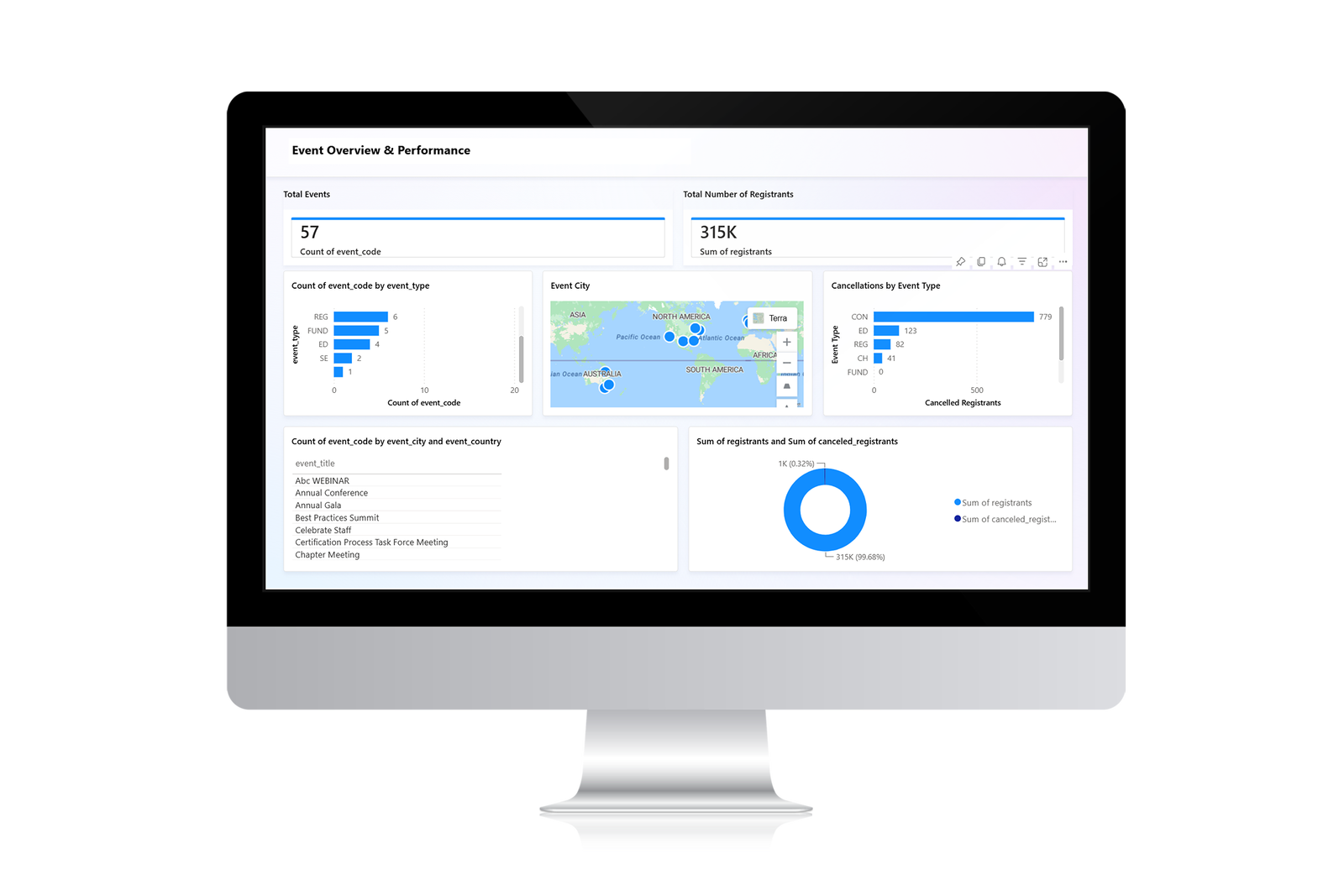
iMIS Fusion unifies your organization’s data into a single, trusted source of truth and infuses AI-powered intelligence to transform fragmented information into predictive, actionable insights that drive smarter decisions, stronger engagement, and sustained growth.
You'll gain visibility into member, event, and product sales history over time. Compare periods, look back before a member lapsed, and answer board questions with definitions that stay the same in every report.
Built on Microsoft Azure and Power BI, iMIS Fusion delivers real-time, high-performance reporting through intuitive dashboards your teams will actually use.
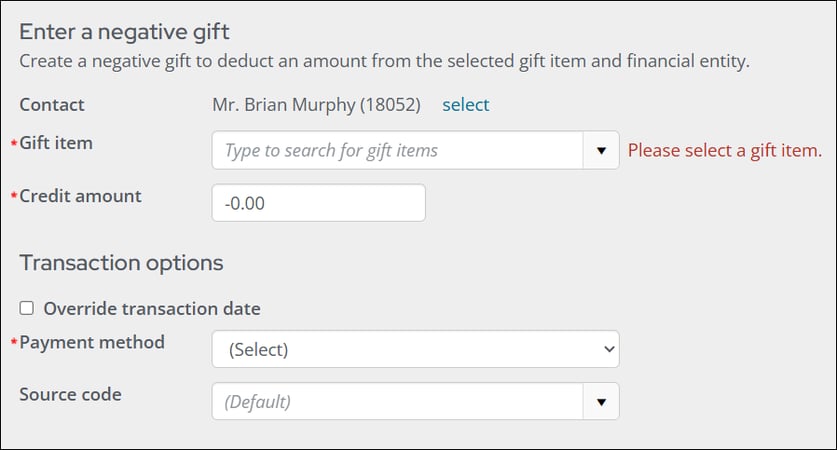
Staff users can reduce the amount attributed to a financial entity (fund) or gift item by entering a gift with a negative amount. A negative gift typically represents money moving out of a fund rather than money received from a donor.
Learn more on the What's New page.
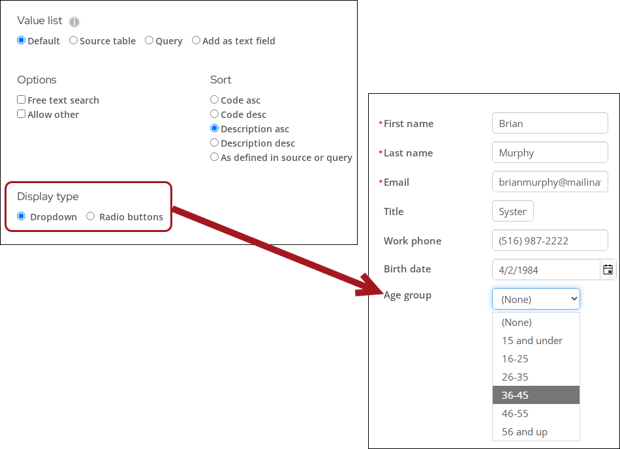
Form Builder now offers more flexibility in how value list fields appear to users. Form designers can choose a display type that best fits the field's purpose, the number of available values, and the experience they want to give respondents. Single-select fields can appear as drop-downs or radio buttons, and multi-select fields can appear as checkboxes or as a multi-select drop-down with type-to-filter support.
Learn more on the What's New page.
This is just a taste of the exciting enhancements in the latest iMIS release. For a comprehensive list, detailed documentation, videos, and training, visit the What’s New page on the help site. We can't wait to see how you leverage these updates!
Thank you again for being a part of the iMIS Community, we can’t do this without you. All of us here at ASI wish you continued growth and connections and I hope to see you at one of the many upcoming events!
Here are the last few iMIS EMS product updates:
Discover the newest updates to iMIS EMS like custom membership invoice descriptions, previewing a business object without a query, and more.
Discover the newest updates to iMIS EMS like an improved shopping cart experience, a new Cookie consent banner for RiSE websites, and more.
Discover the newest updates to iMIS EMS like merging duplicate organizations, the new Membership Configuration Wizard, and more.